
Add or change your profile photo
Screenshots show the Dutch interface. Menu names and buttons appear here as they appear on screen, in Dutch.
You upload or replace your profile photo from your profile.
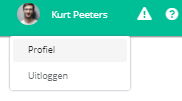
- Click your name at the top right of the navigation bar.

- Click profiel (profile).
- Click your current profielfoto (profile photo).
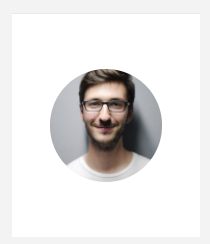
No photo yet? Click the profile photo icon.
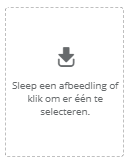
- Drag your image into the window or click the upload icon to pick a file.
- Resize the image as you like and click the bijsnijden (crop) button.
Was this article helpful?
One more question?Open a ticket and we will look at it with you.
Open a ticket